Pen, highlighter, and line
Choose a color and stroke width. The highlighter offers wider strokes.


SCREEN ANNOTATION
When a button needs emphasis, a change needs circling, or an idea needs a quick sketch, FloatInk puts the ink above the desktop without breaking your flow.
Current release ZIP, with the full installer inside.
Your tools, right where you need them

FLOATINK FOR WINDOWS
Start from the floating toolbar, then return to Mouse mode whenever you need to keep working in the app underneath.
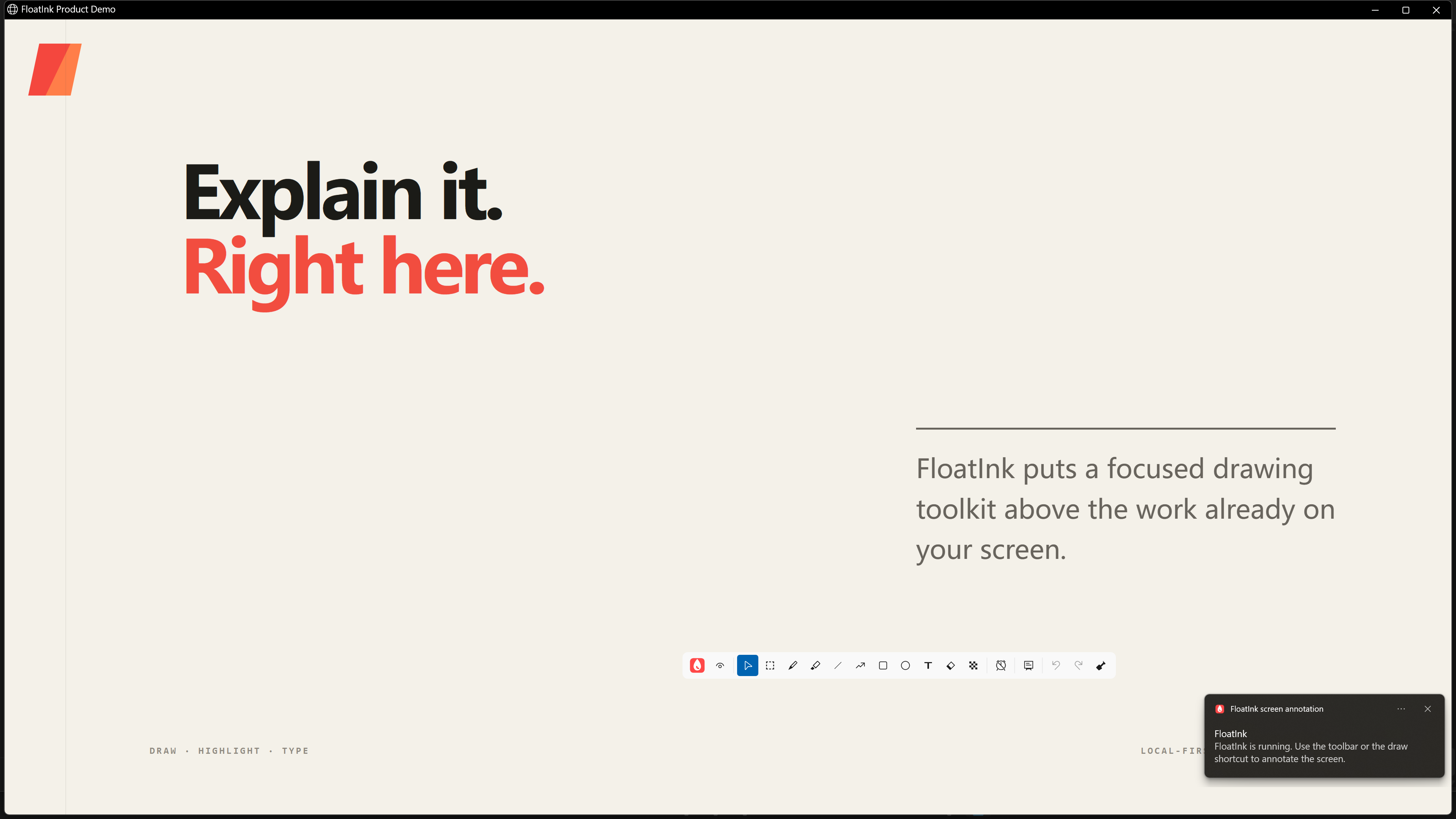
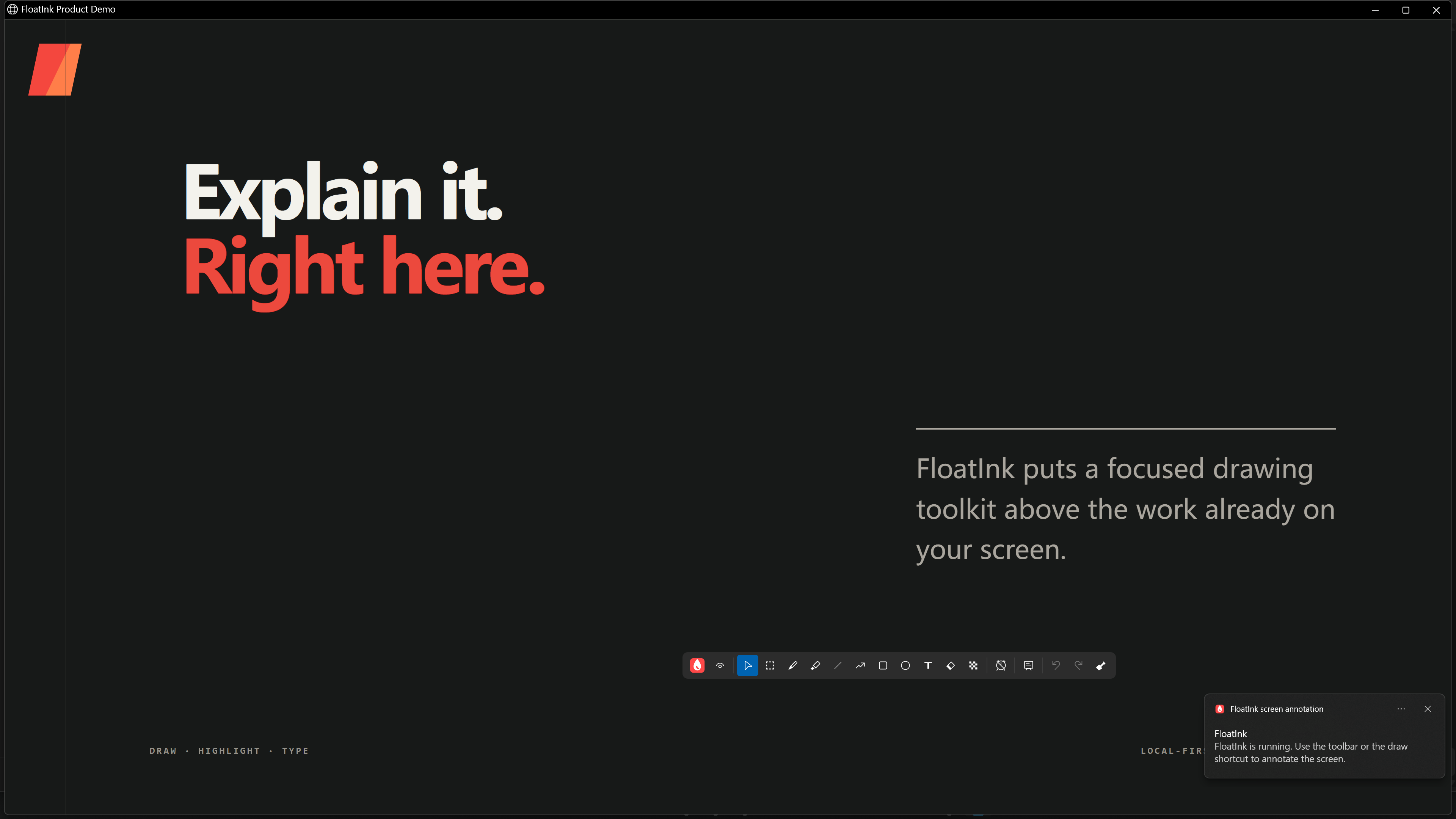
FloatInk running above presentation content. Mouse mode keeps the application underneath usable.


Mouse, Select, pen, highlighter, line, arrow, rectangle, ellipse, text, eraser, mosaic, and whiteboard. Undo, redo, and other actions sit alongside them.
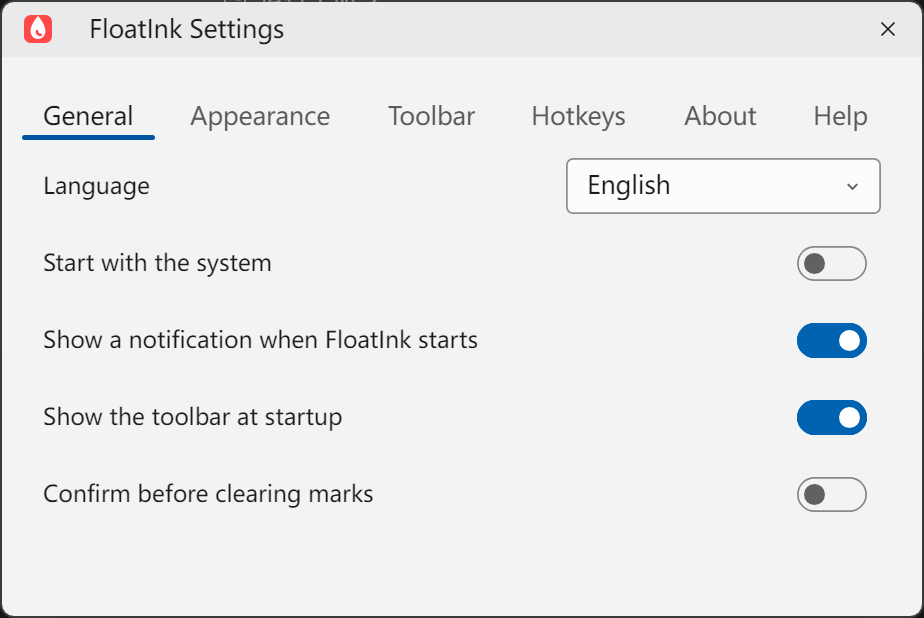
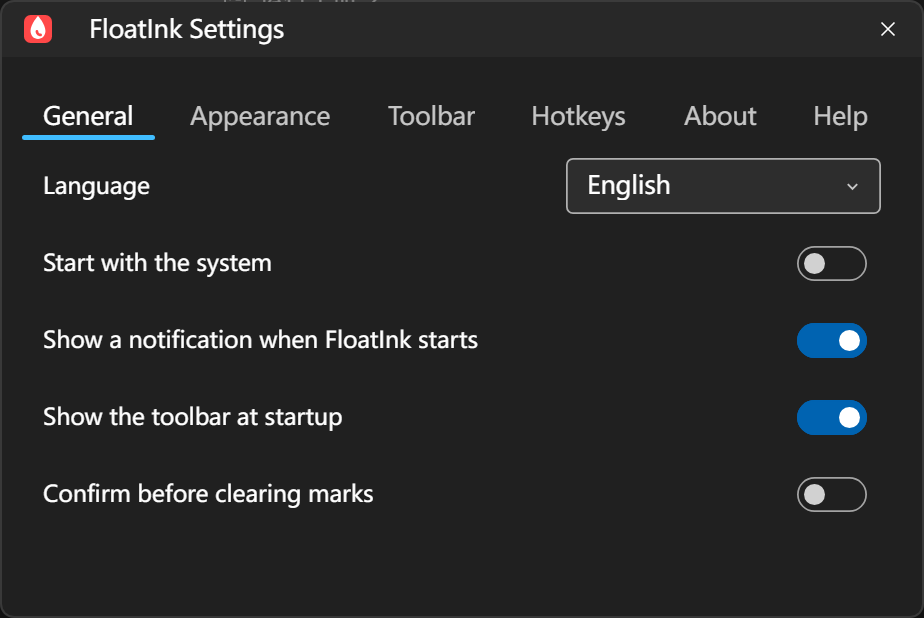
Language, startup behavior, and clear confirmation live on General. The window follows your selected light or dark theme.
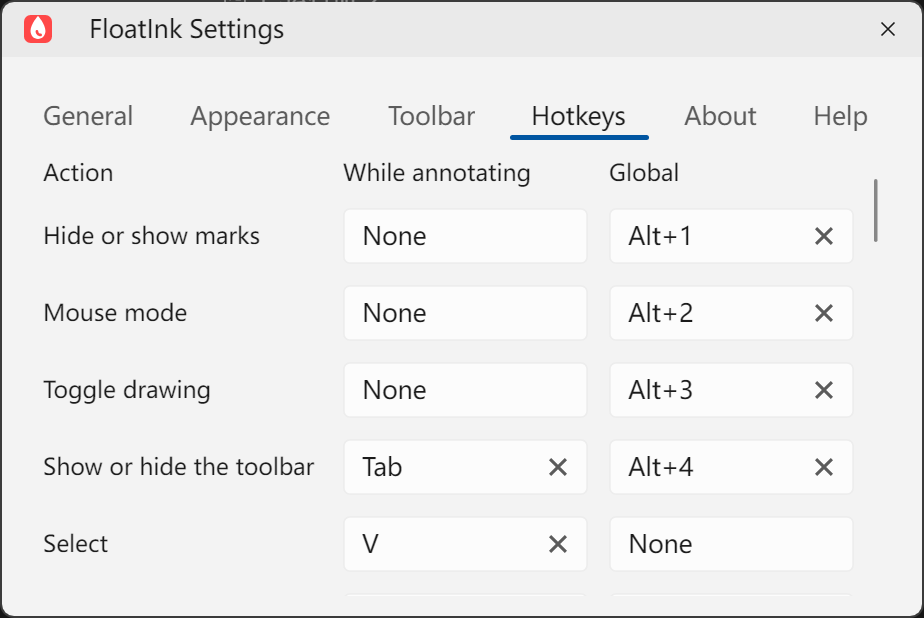
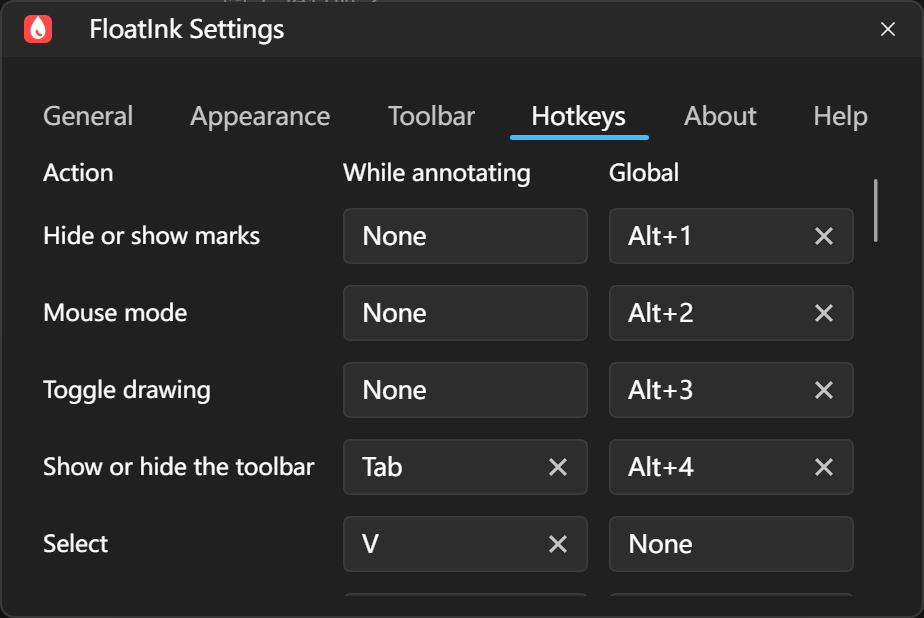
While annotating shortcuts apply during drawing. Global shortcuts can trigger frequent actions from another app.
DRAW / EXPLAIN / MOVE ON
Ready when needed.Lives in the tray and opens the toolbar when you need it.
Mouse mode passes clicks through, so the application underneath remains usable.
Desktop ink, whiteboard, and blackboard share the same focused toolkit.
TOOLKIT
The same icons, in the same order as the main toolbar. Use Select to move, resize, or delete existing marks. Hold Shift to modify a selection, or hold Ctrl with another annotation tool to enter the same selection state temporarily.
Interact with the app beneath
Select, move, and resize marks
Write and sketch freely
Highlight important details
Draw precise connections
Point to a direction or detail
Frame an area of interest
Circle what matters
Add readable explanations
Erase unwanted ink
Obscure a part of the screen
Switch to a white or black board


POINTER EFFECTS
Mouse mode can highlight the pointer with a halo and show distinct rings for left and right clicks while you work in the app underneath.
Effects appear only in transparent desktop Mouse mode and pause during drawing, selection, erasing, or an opaque board. Check your sharing preview before a meeting or recording.
DESKTOP MODE
Press the default Alt + 2 to return to Mouse mode while the ink remains visible. Hide it when needed, then bring it back in one action.
MULTI-DISPLAY
Each display has its own canvas, while undo and redo still follow the order of your actions.
BOARD MODES
No presentation file required. A blank surface is ready whenever an idea needs room.
LOCAL FIRST
Assign frequent commands globally and trigger them while using other apps.
Follow the system language or choose one explicitly in settings.
Edits follow one order across displays, with up to 256 committed changes retained.