
YOUR FIRST MINUTE
Remember three actions
- 1Start annotating
Press Alt + 3, or choose a drawing tool on the toolbar.
- 2Choose and draw
Hover over a tool with options, adjust its color, size, or style in the secondary toolbar, then left-drag on the screen.
- 3Return to your work
Press Alt + 2. Your marks stay visible while the app underneath becomes clickable.
Press Alt + 1 to hide or show marks, and Alt + 4 to hide or show the toolbar.

 View full size (new tab) ↗View full size (new tab) ↗
01
Getting started
From your first launch to your first annotation.
Launch and find the toolbar
After launching FloatInk, find its icon in the Windows system tray, including the hidden-icons area. Open its context menu and enable Show toolbar. Alt + 4 also shows or hides the toolbar by default.
Tool buttons cannot currently be reordered. To move the entire toolbar, drag the FloatInk icon at its left edge. Select Pen (P by default), then hold the left mouse button and drag to draw on the screen. Hover over or click a tool with options to adjust its color, size and other properties.
Return to your other apps
Choose Mouse, or press the default Alt + 2, to click and type in the app underneath. Your marks can remain visible. Select a drawing tool or press Alt + 3 to resume annotating.
Esc first cancels a gesture or text edit, then clears a selection; otherwise it returns to mouse mode. To quit FloatInk, choose Exit in its tray menu. Closing Settings does not quit the app.
How long marks last
Marks belong to the current session and are not saved after quitting. Before quitting or updating, use a system screenshot or recording tool if you need a copy. Preferences and tool settings are saved, but marks do not return on the next launch.
02
Modes, boards and visibility
Mouse interaction, board backgrounds and visibility serve different purposes.
Four actions that are easy to confuse
Keep marks visible and interact with the app underneath.
Temporarily hide marks and return to mouse interaction.
Hide only the controls; marks and shortcuts keep working.
Remove all marks and undo history. This cannot be undone.
Desktop, whiteboard and blackboard
Desktop annotation leaves your other apps visible. Whiteboard and blackboard provide opaque backgrounds for explanations. Entering either board starts annotation with your last annotation tool. Returning to the desktop background preserves marks and keeps drawing active.
Choose Mouse (Alt + 2 by default) to restore a transparent desktop and interact with the app underneath. Board backgrounds are not separate documents: switching backgrounds uses the same marks.
Hide ink, hide toolbar, clear
The eye button (Alt + 1 by default) hides ink, restores mouse interaction and collapses the toolbar to the app icon and eye button. Showing ink restores the previous tool and board. Fading marks may already have disappeared: hiding ink does not pause their deadlines.
Hiding the toolbar (Alt + 4 by default; Tab also works on the annotation canvas) only hides its controls. Marks, shortcuts and mouse effects remain available. Clear marks removes annotations from every display, including disconnected displays, and clears undo history; it cannot be undone.
03
Drawing and editing
Each tool keeps its own settings. Select a tool and adjust its options.

 View full size (new tab) ↗View full size (new tab) ↗
Find a tool by its icon
These are the main controls from Mouse through Board, in the same order as the app. Alt + 2 for Mouse is global; the letter shortcuts shown with the other tools work only while annotating. Fade, Undo, Redo and Clear are covered in their relevant sections.
- MouseAlt + 2
- SelectV
- PenP
- HighlighterH
- LineL
- ArrowA
- RectangleR
- EllipseO
- TextT
- EraserE
- MosaicM
- Board
Two ways to enter selection
Use it for repeated selection and editing. Shift-click toggles one mark and Shift-drag adds enclosed marks.
With another annotation tool active, hold Ctrl to enter the same selection state temporarily. Add Shift to toggle one mark or add enclosed marks; release Ctrl to return to the original tool.
Pen, highlighter and shapes
Use Pen for freehand writing and Highlighter for translucent emphasis. Left-drag to place a line, arrow, rectangle or ellipse. Rectangles and ellipses offer outline and fill modes; arrows have style options.
Colors include red, yellow, green, blue, white, black and a custom picker with Hex input. Tools retain independent colors and sizes. Size and color shortcuts generally affect subsequent marks, not existing annotations. Filled shapes have no adjustable outline width.
Select, move, resize and delete
Choose Select (V by default while annotating, the dashed-square button) to enter Select mode, then click a mark or drag a rectangle around complete marks. Marquee selection includes only fully enclosed objects. While selection is active, hold Shift while clicking to add or remove one mark, or while dragging to add all enclosed marks.
With Pen, Highlighter, a shape, Eraser, Mosaic, or Text active, you do not need to change tools: hold Ctrl to enter selection temporarily. Ctrl-click or Ctrl-drag replaces the current selection; add Shift to toggle one mark or add fully enclosed marks. Release Ctrl to return to the original tool. Shift alone does not change tools. Temporary selection does not apply in Mouse mode or while typing text.
Drag a selected mark or empty space inside its selection bounds to move the selection. A single resizable shape shows handles. Delete or Backspace deletes selected marks; a group move or deletion is one undo step. Dragging over existing marks with a drawing tool still draws new ink.
Esc cancels an active move or resize and restores its original state. Multi-object resizing, rotation, lasso selection and persistent grouping are not available.
Text
Choose Text (T by default) and click to type; Enter adds a line. Clicking outside, changing tools or moving focus away commits the edit; Esc cancels it. Double-click existing text with Select or Text to edit it. Double-clicking with Pen continues drawing.
Text options include font, size, bold, italic and color. The editor grows with your text, including input-method composition, within screen bounds. Editing previously erased text replaces its layout and removes its old cuts; undo restores the previous state.
Eraser
Choose Eraser (E by default). Left-drag erases the swept area; a left-click erases a circular area. Right-click or right-drag removes entire touched marks. Choose one of three diameters. Each gesture is one undo step; an empty erase adds no history.
Partial cuts move and resize with the object and do not affect ink drawn later. Press Esc to cancel the active erase preview.
Mosaic
Choose Mosaic (M by default) and drag over the area to obscure. Desktop samples refresh at the start of each stroke; existing mosaic marks do not continuously track changes underneath. Recheck coverage after changing pages, moving windows or scrolling.
Mosaic is a visual screen overlay and does not alter the original file. Before sharing, check that the actual screenshot or recording includes the overlay. The Mosaic button is unavailable when the system cannot provide screen capture.
Undo and redo
Ctrl + Z undoes and Ctrl + Shift + Z redoes. History follows the order of edits across displays; a new edit clears redo. Up to 256 committed changes are retained. Automatically expired marks cannot be recovered through undo.
04
Presentations and multiple displays
Help your audience follow along and control how much ink stays on screen.
Ink fade
The default is 5 seconds; you can also choose Off, 15 or 30 seconds. Newly committed pen, highlighter, line, arrow, rectangle and ellipse marks fade after the hold time. Strokes committed no more than one second apart form a group so multi-stroke writing disappears together.
The fade lasts about 0.7 seconds. Changing the mode does not alter existing marks' deadlines. Text and mosaic do not fade automatically. Hiding ink or disconnecting a display does not pause deadlines.
Pointer highlight and click feedback
In Mouse options, enable pointer highlight and click feedback independently. Adjust size, halo color and left/right button colors. A left press shows one ring and a right press two; rings follow a held drag and fade after release.
Effects appear only in desktop mouse mode. Drawing, selection, erasing, opaque boards and hidden ink suspend them. Hiding only the toolbar does not. Effects do not become marks or undo steps.
Displays, sharing and recording
Each display has its own marks. Reconnecting the same display during the session restores them. Undo and redo skip disconnected displays. Clear marks still clears every display.
05
Keyboard shortcuts
These are the Windows defaults. In-app Help shows your current assignments; change them on the Shortcuts page.
Shortcut scopes
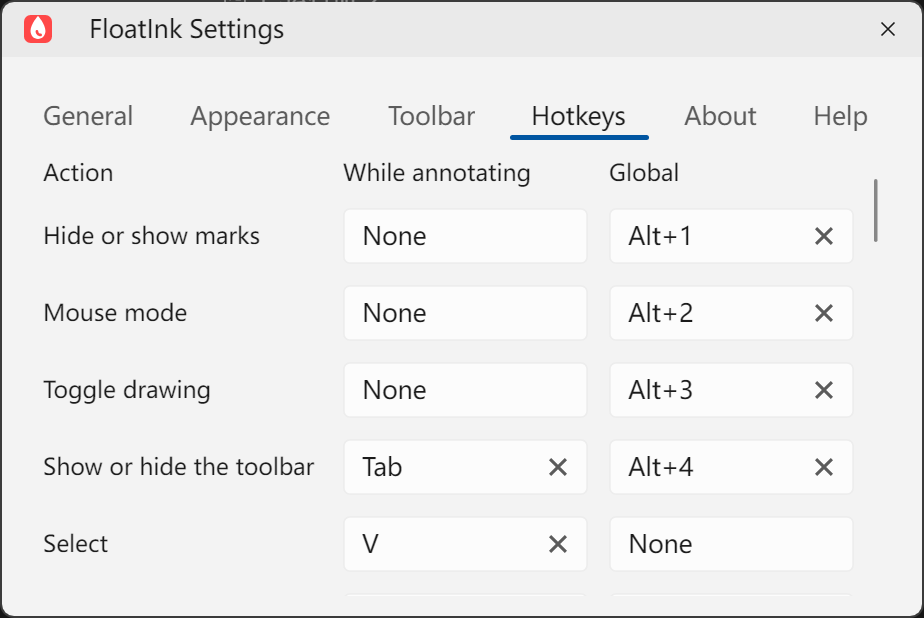
Shortcuts have two scopes. While annotating shortcuts such as V for Select, P for Pen, H for Highlighter and L for Line work only on the annotation canvas or toolbar with options closed. Global shortcuts (Alt + 1 through Alt + 4 by default) also work while you use another app. Annotation shortcuts pause while you edit text, colors, shortcuts or settings, so typing letters never changes tools. Tab keeps its focus-navigation role on toolbar controls and hides or shows the toolbar only on the canvas.
Each command can have one annotation binding and one global binding, and either can be left unassigned. Global bindings require modifiers or a function key. FloatInk rejects internal conflicts, but another app or the OS can still occupy a shortcut; check registration warnings in Settings. Esc and unmodified Delete/Backspace remain reserved for cancellation and deletion.
Size, color and previous tool
When the current tool supports size, S cycles three presets and [ or ] decreases or increases it. C cycles preset colors; 1–6 select red, yellow, green, blue, white and black. Cycling from a custom color starts at red. Mouse and Select have neither color nor size; Eraser and Mosaic have size only, and filled rectangles or ellipses have no adjustable stroke width.
Q swaps the last two explicitly selected annotation tools; temporary Ctrl selection does not change that pair. Shortcuts do not open tool options. Finish an active drawing or dragging gesture before changing its size or color.
After a shortcut changes the annotation tool, color or size, a brief status card appears at the top of the display being annotated. It always names the current tool and includes color or size when supported. If you use a color or size shortcut on an unsupported tool, it also explains why nothing changed. Repeated keys refresh its contents and timeout immediately; it neither takes focus nor blocks pointer input.

 View full size (new tab) ↗View full size (new tab) ↗
| Action | While annotating | Global |
|---|---|---|
| Hide or show marks | — | Alt + 1 |
| Mouse mode | — | Alt + 2 |
| Toggle drawing | — | Alt + 3 |
| Show or hide the toolbar | Tab | Alt + 4 |
| Select / Pen / Highlighter | V / P / H | — |
| Line / Arrow / Rectangle / Ellipse | L / A / R / O | — |
| Text / Eraser / Mosaic | T / E / M | — |
| Cycle size / Decrease / Increase | S / [ / ] | — |
| Cycle color / Preset colors | C / 1–6 | — |
| Previous tool | Q | — |
| Undo / Redo | Ctrl + Z / Ctrl + Shift + Z | — |
| Hide ink, board, fade, clear, mouse effects | — | — |
Selection reminder: choose Select (V) for repeated editing, or hold Ctrl with another annotation tool for temporary selection. Whenever selection is active, Shift-click toggles one mark and Shift-drag adds enclosed marks; during temporary selection, use Ctrl + Shift. Esc and Delete/Backspace are described in Drawing and editing above.
06
Settings
Open Settings from the tray. Most changes apply immediately and persist across launches.
General
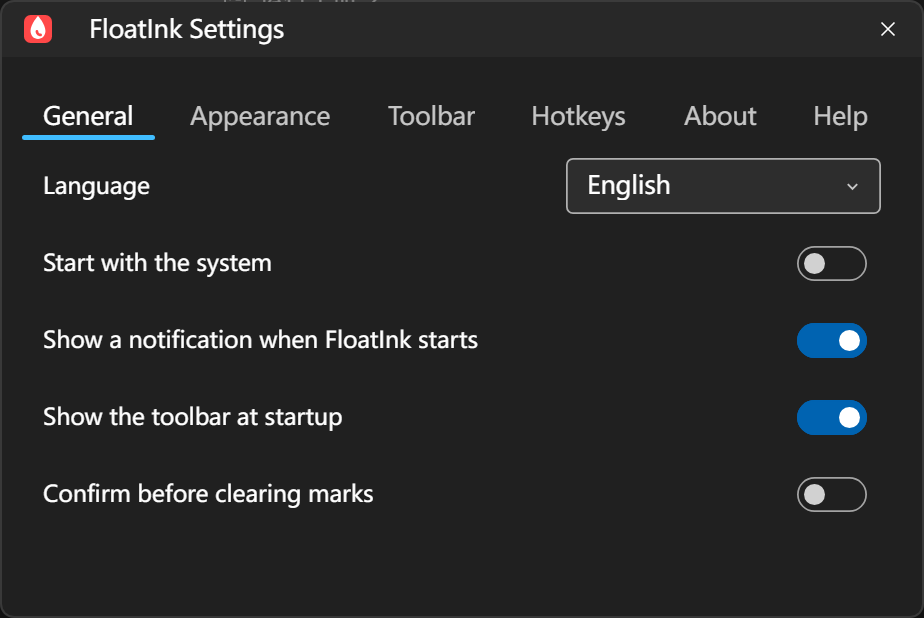
Choose the interface language, launch-at-login preference, startup notification, toolbar visibility on startup and confirmation before clearing marks. Clear confirmation is off by default and can be enabled here. Launch at login is unavailable when the system service is unsupported.
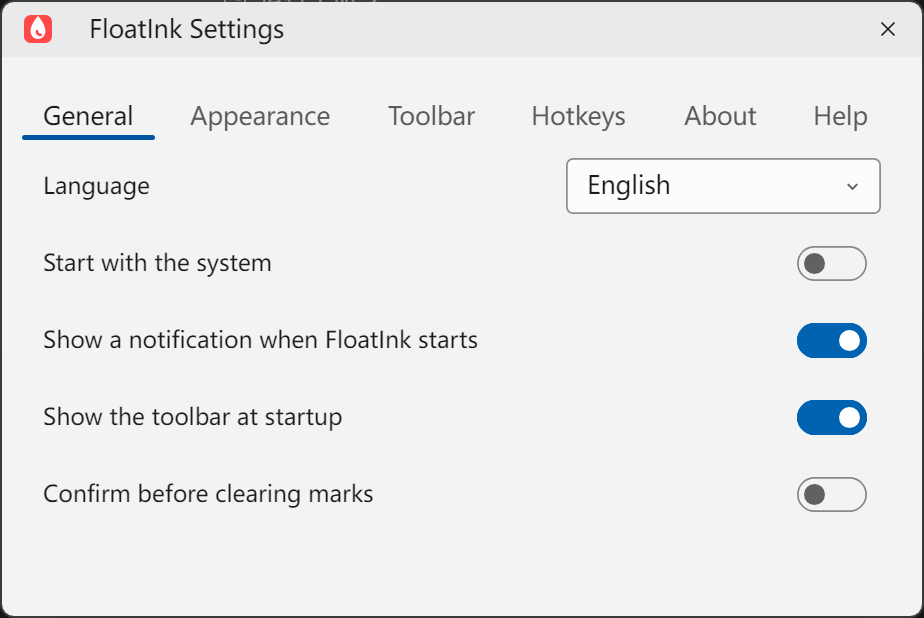
 View full size (new tab) ↗View full size (new tab) ↗
Appearance
The theme can follow the system or stay light or dark. Set the accent independently to system or custom. Apply saves the custom color; Cancel or dismissing the picker discards the edit. The theme accent does not change ink colors.
Toolbar
Choose horizontal or vertical orientation, remember the position of the entire toolbar, and hide optional buttons individually; tool buttons cannot currently be reordered. The FloatInk handle that moves the toolbar, the ink visibility button, and Mouse remain available. Restoring default visibility does not reset orientation, shortcuts, or tool styles.
Hiding a button does not disable its command: configured shortcuts still work. To edit a hidden tool's options, show its button again in Settings.
Shortcuts, About and Help
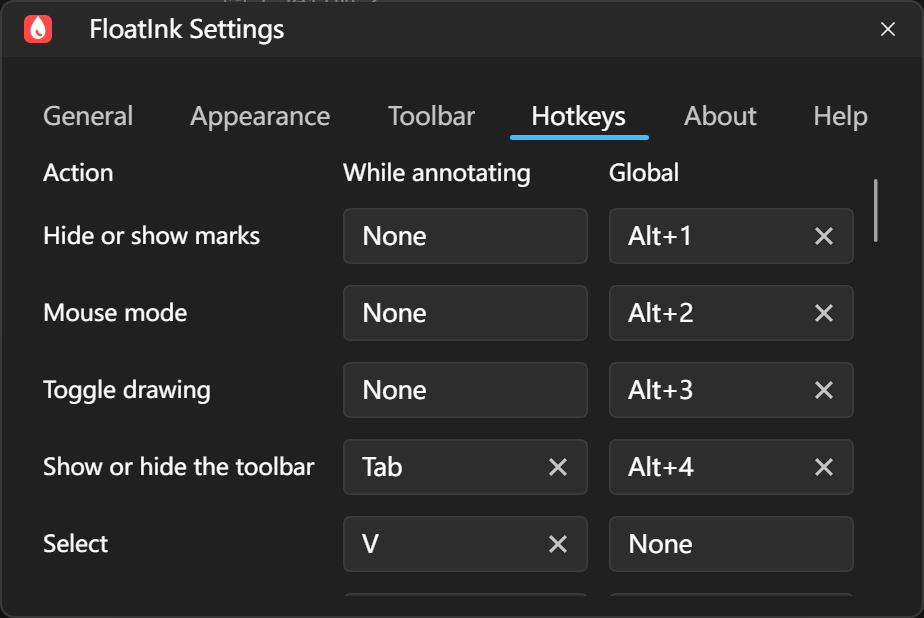
Shortcuts configures annotation and global bindings separately. About shows version, trial or activation status and updates, and opens the software licence agreement, privacy policy and third-party notices. Help includes an offline reference and your current shortcuts, plus the online manual.
 View full size (new tab) ↗View full size (new tab) ↗
07
Trial, activation and updates
Features remain usable after the trial; activation removes the unactivated watermark.
30-day trial
First launch connects automatically to request a signed 30-day trial. On successful issuance, the toolbar opens automatically without asking for an activation key. If initially offline, retry or activate a purchased licence offline. Restoring deleted trial data preserves the original expiry. After expiry, features remain usable with an unactivated watermark on visible canvases. Check status in About or open activation from the tray. Visit the website purchase page to buy a licence.
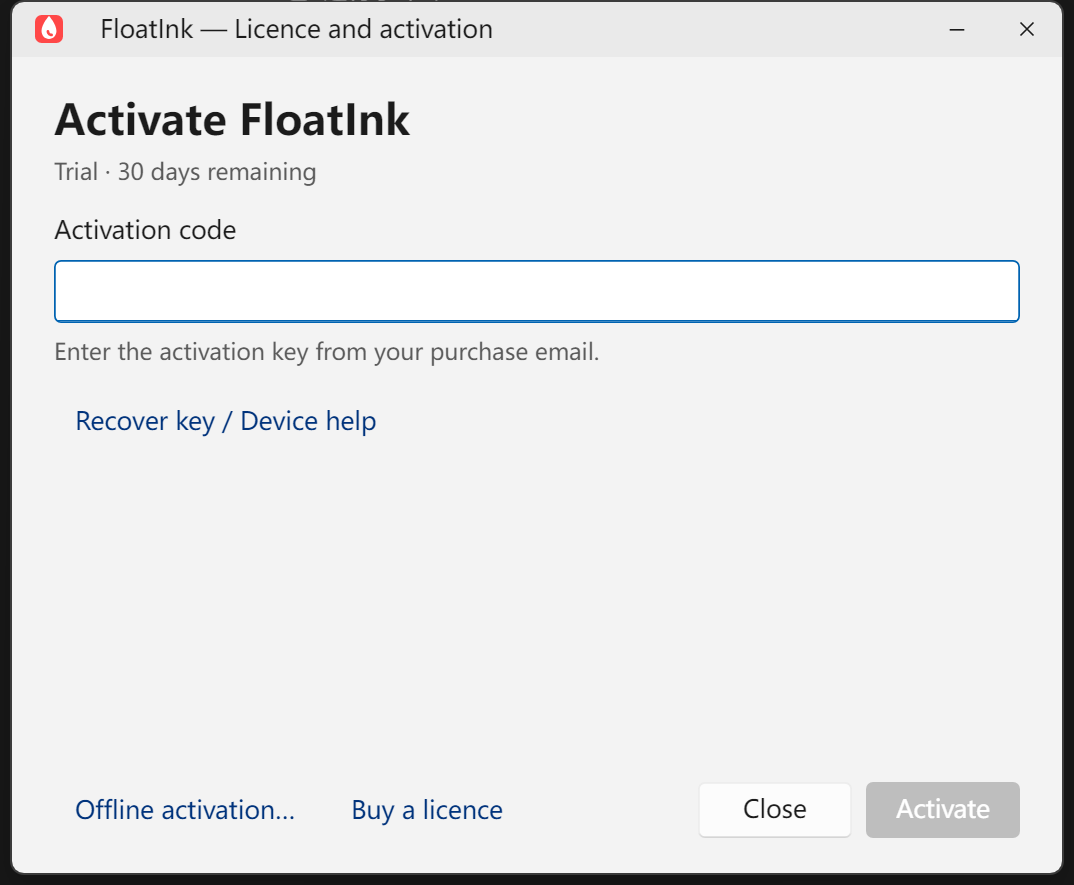
Online activation
- On a connected computer, choose Purchase and activation from the tray, or open Settings → About → Activate.
- Paste the activation key from your purchase email and choose Activate.
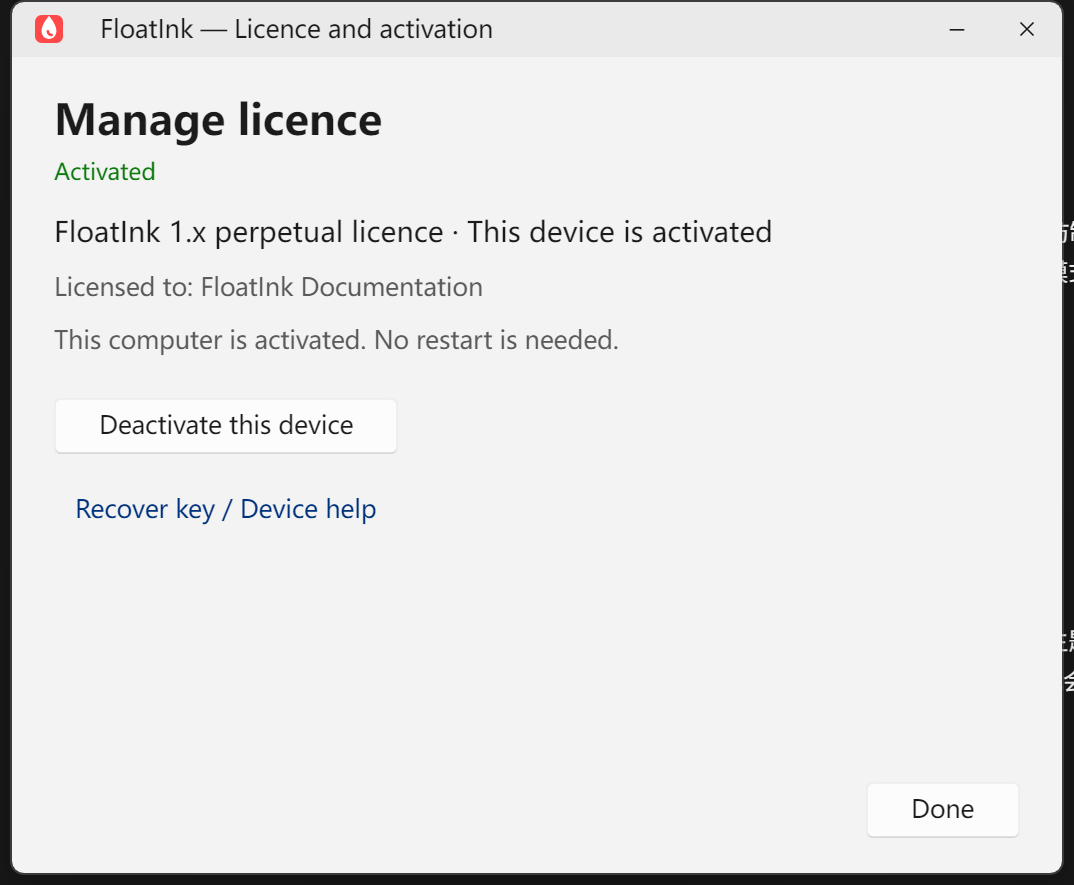
- Confirm the licence version and licensee in Manage licence. No restart is required.
If no result returns, retry directly: repeated activation for the same device does not consume another device slot.
 View full size (new tab) ↗View full size (new tab) ↗
Deactivate before moving devices
- On the old device, open Settings → About → Manage licence and choose Deactivate this device.
- Enter the same activation key again and confirm. After deactivation completes, activate on the new device.
Deactivation needs a network confirmation. If the local licence is removed but the service confirmation temporarily fails, the app reports that state explicitly. Reactivating the same device does not consume a duplicate slot.
 View full size (new tab) ↗View full size (new tab) ↗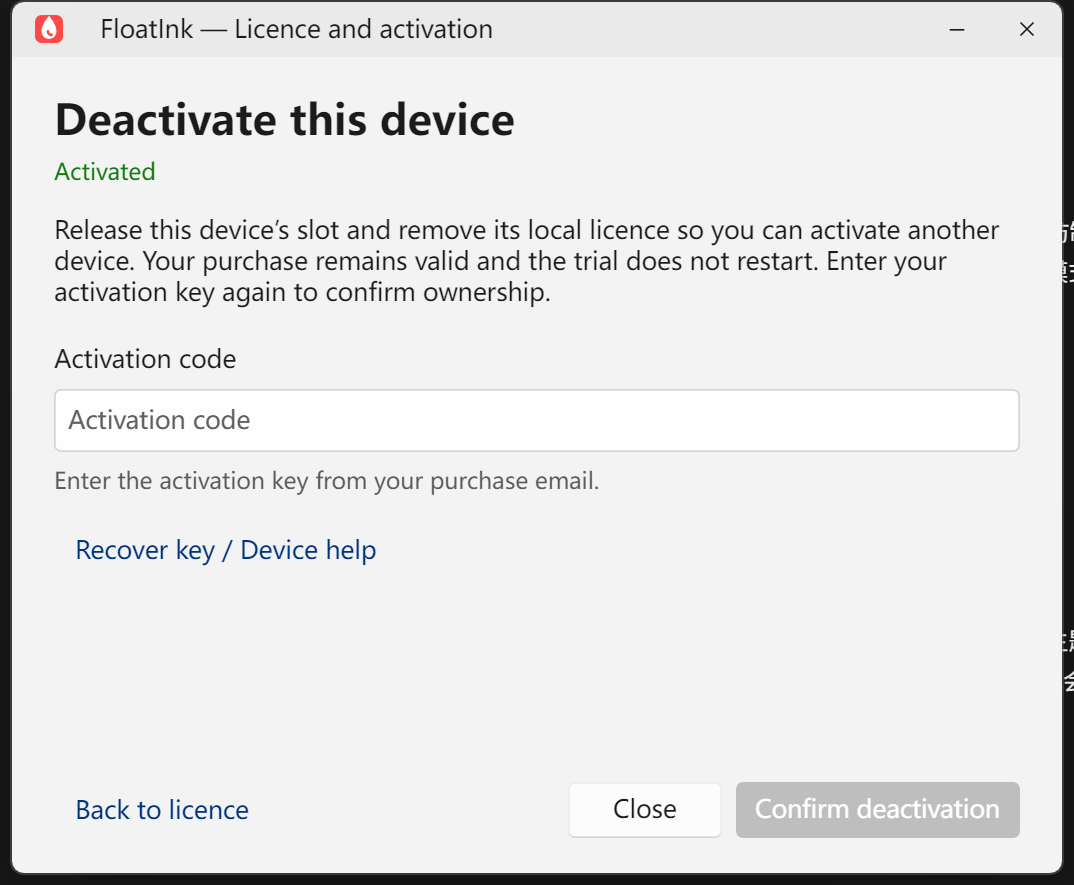
 View full size (new tab) ↗View full size (new tab) ↗
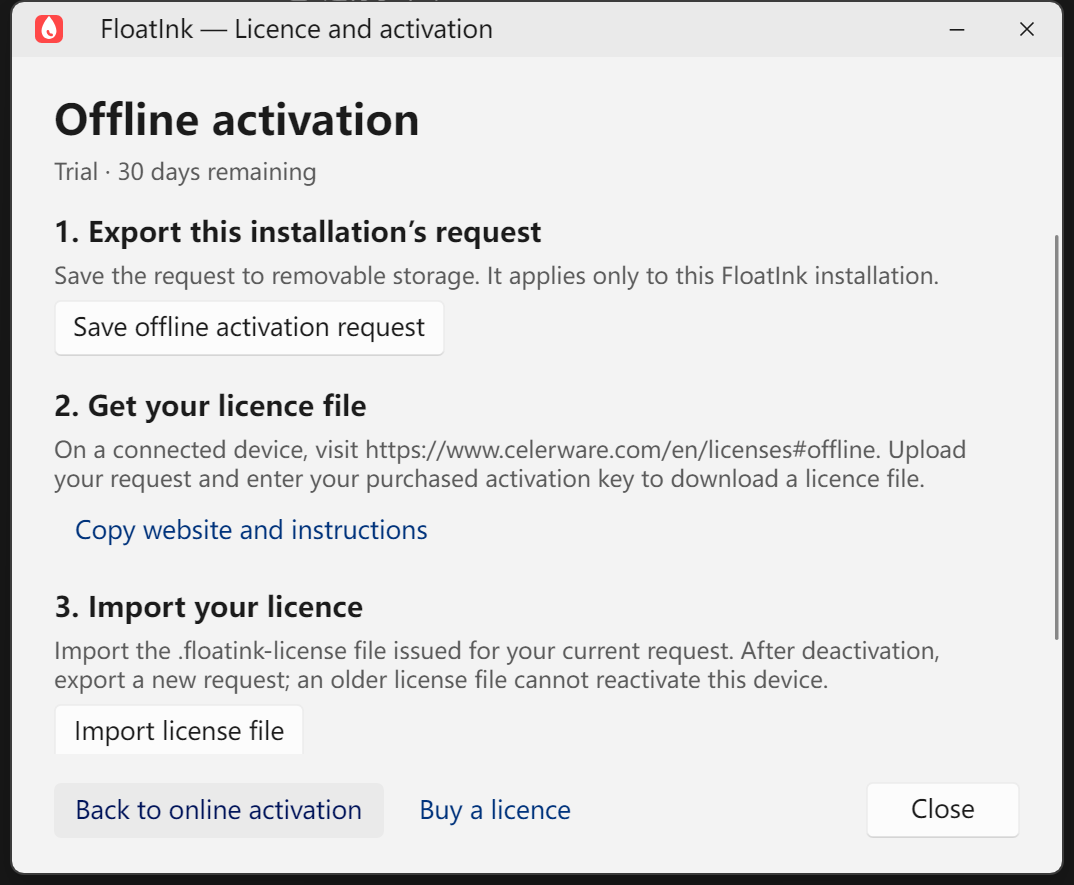
Offline activation
- On the offline computer, choose Offline activation and save the .floatink-request file.
- Move the request to a connected device, open the website offline activation helper, upload the request and enter the activation key from your purchase email.
- Download the .floatink-license file, return it to the offline computer and choose Import licence file.
Issuing the licence consumes one device slot; retrying the same request does not consume another.
The request and licence apply only to the installation that created them. After deactivation, the old licence file cannot activate that device again; export a new request before reactivation. Keep activation keys, request files, and licence files private. Normal launches validate an activated licence locally and do not need a connection each time.
 View full size (new tab) ↗View full size (new tab) ↗
Check for updates
- By default, FloatInk checks automatically once every 24 hours while it is running. You can also check immediately from the tray or Settings → About, or turn automatic checks off under Settings → General.
- When a new version is found, the toolbar shows an update button and presents the version once. Windows may suppress the system notification when Do not disturb is enabled. FloatInk does not download automatically; you can handle it later or skip that version, and a newer release will still be reported.
- Select the toolbar update button, or open Settings → About, then choose Download update. You can cancel the download. When it finishes, approve installation in the confirmation dialog; FloatInk verifies the installer again before closing the app and starting it.
Network or verification failure leaves the existing installation in place. Builds without an update service explicitly show it as unavailable.
08
Troubleshooting
Check modes and settings first, then the system or recording software.
The toolbar disappeared
Enable Show toolbar in the tray or use its configured shortcut (Alt + 4 by default). Seeing only the app icon and eye usually means ink is hidden: click the eye to restore it. Restore missing individual tools on the Toolbar settings page.
I cannot click the app underneath
Choose Mouse or press Alt + 2. Whiteboard, blackboard and drawing mode receive screen input. If keyboard focus has not returned to the target app, click its window after switching to Mouse.
Click feedback is missing over Task Manager
Task Manager may automatically run with administrator privileges. If FloatInk is running with standard privileges, Windows permission isolation can prevent it from receiving left- and right-click events over these windows. Other apps running as administrator may be affected too.
- Choose Exit from the system tray menu to fully close FloatInk.
- Right-click the FloatInk executable or shortcut, choose Run as administrator and confirm the Windows prompt.
- Enable click feedback again and retry in desktop mouse mode.
Standard privileges are sufficient for everyday use. Use administrator privileges when you need click feedback over administrator windows.
A shortcut does not respond
Check the current assignment in in-app Help and its scope. Finish text or color editing and try again. If a global combination is occupied, choose another in Settings. Complete drawing or dragging before using size and color commands.
Marks disappeared or cannot be restored
Check whether ink is hidden (Alt + 1 shows it again by default), fade is enabled or the display is disconnected. Expired, cleared or post-exit marks cannot be recovered. Hidden, unexpired marks can be shown again. Reconnect the same display during the session to restore its retained content.
Marks are missing from a recording
Try sharing a whole display instead of one application window and check the recording preview. FloatInk marks and mouse effects are separate overlays; capture behavior varies by software.
Data and feedback
On Windows, local settings, logs and activation data live under %LOCALAPPDATA%\Celerware\FloatInk and are preserved on uninstall.
- Include your Windows and FloatInk versions.
- Describe the steps, expected result and actual error; include screenshots when useful.
- Review screenshots and logs before sending and remove unnecessary private information.